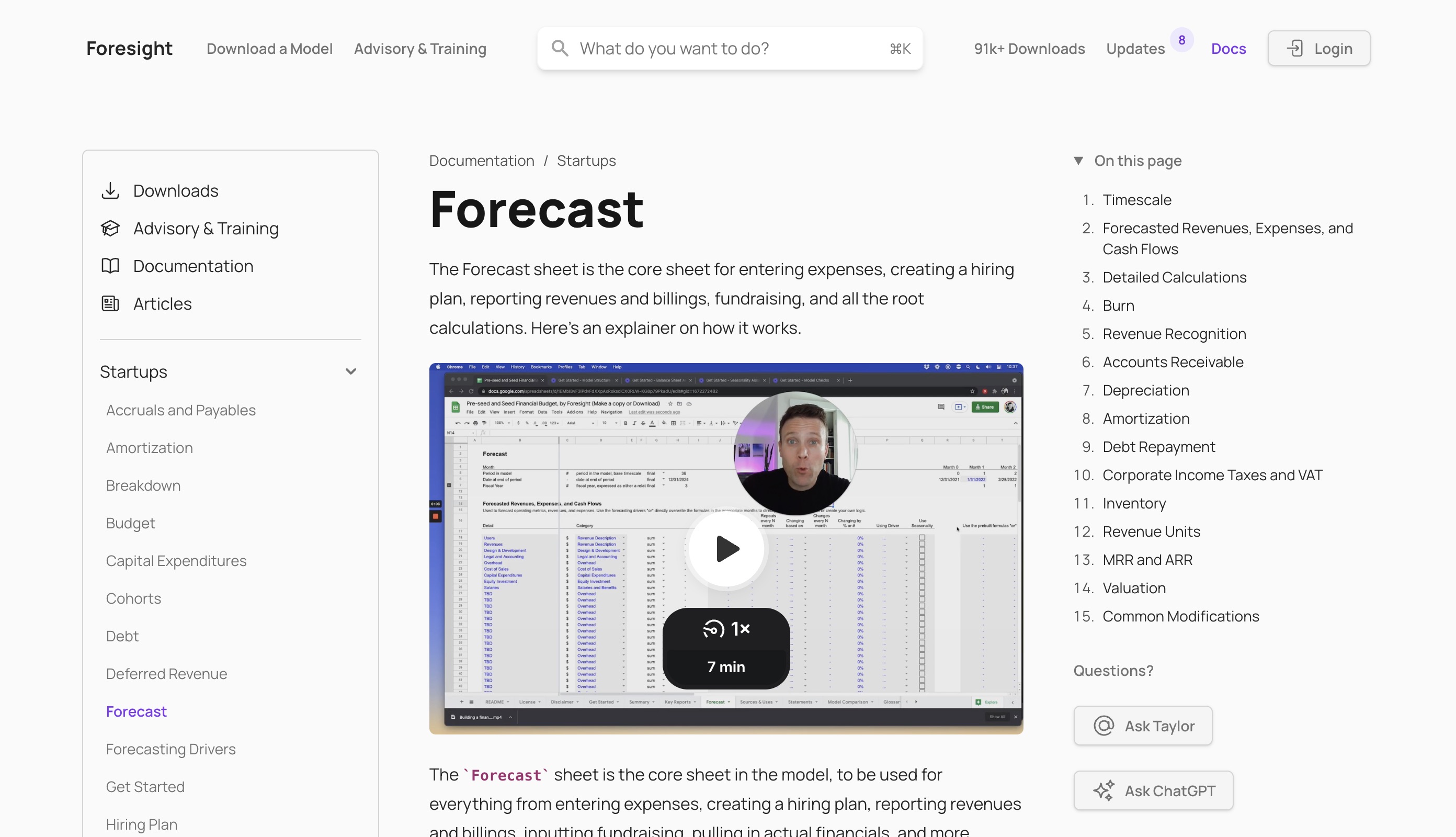
The Forecast sheet is the core sheet in the model, to be used for everything from entering expenses, creating a hiring plan, reporting revenues and billings, inputting fundraising, pulling in actual financials, and more.
Here's a rundown on the main sections in the Forecast sheet.
The overall use of colors and formatting is explained at Formatting
Timescale
The timescale section sets what each column in the spreadsheet means in terms of periods in the forecast. As detailed in Get Started, you can set the model's base timescale to monthly, quarterly, or annually, and you can set the number of periods in the model. The number of periods can also be reduced or extended if desired. Here's a rundown on what each line in the timescale means.
- Date: this row will vary whether the timescale is monthly, quarterly, or annual, and whether you choose to use relative or absolute dates for reporting purposes.
- Period in model: the period number in the model. This is the base timescale.
- Date at end of period: the date at the end of each period.
- Fiscal Year: The fiscal year, expressed as either a relative # or an absolute date
- Timestep: The period number - 1, used in a couple calculations
- Month # in Fiscal Year: this line tracks the month in the fiscal year, 1 through 12
- Quarter in Fiscal Year: this line tracks the quarter in the fiscal year, 1 through 4
- Seasonality % optional, used for any driver that selects "use seasonality"
- Note: Deferred revenues start month: an optional start month for recognizing deferred revenues, used in one calculation in model
- Actuals or Forecast? Reports whether actuals or forecast are used in the financial statements. Actuals are automatically used if any data is entered in actuals section for that period.
- Timescale Flag: A flag to note whether the period is less than the desired timescale on Get Started
- Event Flag: a placeholder for a custom flag to introduce based on a future need
- Custom Flag: a placeholder for a custom flag to introduce based on a future need
- Escalation Factor: a placeholder for an escalation / deceleration / inflation factor
Seasonality and each of the flags can be used on a line by line basis on the Forecast sheet in the columns for each line that uses the drivers, on a checkbox or TRUE/FALSE basis. The flags are primarily for future features or custom additions like scenarios.
Forecasted Revenues, Expenses, & Cash Flows
This section is used to forecast operating metrics, revenues, and expenses. For each line, you can use the forecasting drivers or directly overwrite the formulas in the appropriate months to directly input your assumptions or create your own formulas and logic. The default setup for this uses section breaks to separate revenues, expenses, fundraising, hiring plan, and operating metrics into separate sections. This setup is purely personal preference. You can insert rows and change order of this however you want, any "section" or set of rows can be deleted if unneeded, and any sections may be added however a user wants to divide up the items. All the model cares about is the category selected in column D, as that determines the treatment for that line, not the sections themselves. That said, it does make it easier to understand and communicate the model by using sections to break out the core calculations.
Couple important notes about how the Forecast sheet works:
- Detail in column B are labels used for the each line. Throughout the primary input section (meaning, all the lines up to the
Forecast, by Categorysection) these are inputs. In theActuals + Forecast, by categorysection and theDetailed Calculationssections there are additional input opportunities to define the Category labels. - Category in column D in the primary input section allows you to choose how each line should be categorized and treated from an accounting perspective. This column is critical in using the model, as it allows you to set metrics for drivers, input financial statement items, input changes in balance sheet items, and other components in your forecast.
- Segment in column E defines the segment for the optional Breakdown section. If you do not want or need to use the Breakdown report, feel free to ignore or hide this column.
- Column H is a non-input select that can be used to set the reporting in Column I to the
sum,final,initial, oraverageof all the numbers reported in the forecast period (column AB onwards in the Standard Model). It can be beneficial for analysis and error spotting to see reporting on the left hand side of the view rather than scrolling all the way to the right after the forecast period. - Columns K through S are the Forecasting Drivers. Optional but recommended inputs in the primary input section.
- Column T is a column for per-row data flags, used for settings in many of the sections in the
Detailed Calculationssections.
The primary input section - rows 22 through 98 in the default setup, roughly - is the section for inputting the forecast, and this can be shortened or extended to however many rows are desired, there is no limit to the number of rows in this section. After that, the model reports out three sections:
Forecast, by Categorywhich sums the inputs in the primary input section into the reporting primitivesActuals, by Categorywhich is the optional section to input actual or historical financials into the reporting primitivesActuals + Forecast, by Categorywhich (a) sums up the actuals during the actuals periods and the forecasted during the forecast periods, used for Budget analysis, and (b) offers a number of inputs for users to set the names of the accounting categories for revenue, cost of sales (cost of goods sold, or COGS), and selling, general, and administrateive (SG&A) categories. The default category names can be changed if you want to report your financials differently. Many of the rows are not inputs, and they should not be changed. The number of rows used for operating metrics and the accounting categories can be changed - reduced or increased - if desired: the key is to insert or delete the same number of rows in the same relative position in each of the three categories here - Forecast, Actuals, and Actuals + Forecast - and then copy the formulas from each section over the blank rows, and then insert additional rows on the Summary, Breakdown, and Budget sheets if applicable.
This primary input section is also how custom additions to the model are integrated or linked in. For details on how that works, check out Bring Your Own Model for the conceptual background, and How to add custom forecasts in a Foresight base model for more technical details.
Detailed Calculations
This section allows you to set the default names of the Revenues, Cost of Goods Sold, and SG&A labels used in the model. It is not common to change these labels but you can do so if you want to use different labels.
The Optional: Breakdown section allows you to set the segment labels for the Breakdown segments. Details on how and when to use that section at Breakdown.
Burn
This section calculated burn and runway in the following manners:
- Net Burn. calculated here as cash flow from operations + cash flow from investing + debt repayments, excluding external cash flows. Edit if you wish to express net burn using a different definition
- Net Burn (net negative). Used to separate negatives from positives, only used for key reports chart
- Net Burn (net positive). Used to separate negatives from positives, only used for key reports chart
- Runway, using current month burn. This reports "na" if company is cash flow positive, zero if there is no cash or negative cash. this calculation takes cash at beginning of period and divides by the current month's net burn.
- Runway, using next N months. This reports "na" if company is cash flow positive, zero if there is no cash or negative cash. This calculation takes cash at beginning of period and looks at net burn the next N months to figure out when it runs out of cash. Compared to the one above, this calc adjusts for increasing cash requirements in future periods, as well as changing revenue assumptions, to create a different look at runway. If the runway calculated is longer than the periods left in the model, the formula will report the number below as that will be more accurate.
Revenue Recognition
Detailed at Revenue Recognition.
Accounts Receivable
Detailed at Accruals and Payables.
Depreciation
Detailed at Depreciation.
Amortization
Detailed at Amortization.
Debt Repayment
Detailed at Debt Repayment.
Corporate Income Taxes and VAT
Detailed at corporate income taxes and value-added taxes (VAT).
Inventory
Detailed at Inventory.
Revenue Units
This section reports the build of revenue units, a label set on Get Started in the revenue build section, and is used only for the Key Reports. This section is optional, and prebuilt it sums the revenue unit builds from the Revenues sheet. You may or may not want to change the reporting here if you are using custom revenue streams.
MRR and ARR
This section reports the MRR (marginal recurring revenue) and ARR (annualized recurring revenue, or just MRR * 12) from the Revenues sheet, and is used for the Key Reports and Key Metrics sheets. You may or may not want to use this section in reporting based on your company's business model, and you may need to edit this section if you add custom revenue streams or use a split recurring and non-recurring revenue model in the prebuilt Revenues sheet setup.
The calculated MRR does not include one-time revenues or costs, discounts, chargebacks, or affiliate fees. adjusted for contracts longer than a month.
- Beginning MRR: MRR at beginning of period
- Renewal MRR: marginal recurring revenue from renewing customers this period
- New MRR: new marginal recurring revenue from new customers signed this period
- Reactivation MRR: MRR from reactivating customers. optional. not modeled in the default template.
- Expansion MRR: expansion MRR refers to situations where the revenues for a customer increases
- Contraction MRR: contraction MRR refers to situations where the revenues for a customer decreases. Enter as a negative number; model will correct for calculations, but negative numbers are necessary for the charts to render correctly.
- Churned MRR: MRR lost from churn of subscribers. Enter as negative number; model will correct for calculations, but negative numbers are necessary for the charts to render correctly.
- MRR: MRR at end of period
- Net Expansion MRR: As calculated in Why the Quick Ratio is a Crucial SaaS Metric, which excludes renewal MRR, but includes reactivation MRR, which is merely more detail behind the new MRR
- Net New MRR: MRR churned in period / MRR at beginning of period
- Quick Ratio: Optional. I usually calculate per Why the Quick Ratio is a Crucial SaaS Metric, which excludes renewal MRR, but includes reactivation MRR, which is merely more detail behind the new MRR
- Dollar Churn Rate: Optional. Calculated as Churned MRR / ( Existing MRR + Renewal MRR )
Valuation
Detailed at Valuation.
Common Modifications
The sheet is completely open for editing and can be customized by users to handle anything you want to add to the model. Common modifications are to add or delete rows in the primary input section, change the revenue and expense category labels, change the Breakdown segment labels, and create your own formulas or inputs in the forecasting period (columns AB onwards).
Questions, support, or customization help, contact me.